
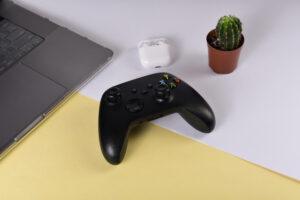
Gaming on a Windows PC offers incredible performance and customization, but when it comes to comfort and ease of use, many gamers still lean toward using a controller instead of a keyboard and mouse. The PS5 DualSense controller stands out as a top choice, thanks to its comfortable grip, responsive controls, and advanced features that enhance the overall gaming experience.
The best part is that connecting your DualSense controller to a Windows PC is quick and straightforward, whether you choose a wired connection or go wireless. In this guide, we’ll walk you through the easiest ways to set it up, customize the controls, and fix common issues so you can enjoy a seamless gaming experience.
Why Use a PS5 DualSense Controller on PC?
Playing with a controller can transform the way you experience games, especially in genres where smooth movement and precise control matter most.
Key Benefits:
- Comfortable for long gaming sessions
- Ideal for racing, sports, and action games
- Smooth analog controls for better movement
- Wireless and wired connectivity options
- Premium build quality and responsive buttons
Method 1: Connect via USB (Wired Connection)
The wired method is the easiest and most reliable way to get started.
Steps to Connect:
- Take a USB-C cable (used for charging the controller)
- Plug one end into your PC
- Connect the other end to the DualSense controller
- Windows will automatically detect the device
Why Choose Wired?
- No input lag
- Stable connection
- No setup required
Method 2: Connect via Bluetooth (Wireless Connection)
If you prefer a clean, cable-free setup, Bluetooth is a great option.
Steps to Connect:
- Open Settings → Bluetooth & Devices on your PC
- Turn on Bluetooth
- Click Add Device → Bluetooth
- Press and hold PS Button + Create Button together for 5 seconds
- When the light starts blinking, select Wireless Controller on your PC
Advantages of Wireless:
- No cables required
- More flexibility while gaming
- Clean desk setup

How to Use DualSense in Games
Connecting the controller is just step one—you also need proper game support.
Using Steam (Recommended Method)
Steam offers built-in support for PlayStation controllers.
Steps:
- Open Steam
- Go to Settings → Controller
- Click “General Controller Settings.”
- Enable PlayStation Configuration Support
- Launch your game
Using Non-Steam Games
If you’re playing games from platforms like Epic Games, Rockstar Games, or other launchers, you might need to do a bit of extra setup to get everything working smoothly.
Best Solution: DS4Windows
Steps:
- Download and install DS4Windows
- Connect your controller (USB or Bluetooth)
- Let the software configure automatically
DualSense Features on PC
While the controller works well, not all features are fully supported.
Feature Support Overview:
- Basic controls: Fully supported
- Vibration: Works in most games
- Touchpad: Limited support
- Adaptive triggers: Limited (game-dependent)
- Haptic feedback: Only in supported titles
Troubleshooting Common Issues
Sometimes things don’t work perfectly—here’s how to fix them.
Controller Not Connecting
- Restart Bluetooth
- Reconnect the controller
- Try using a USB cable
Controller Not Working in Game
- Enable controller support in Steam
- Use DS4Windows for non-Steam games
Input Lag or Delay
- Switch to wired connection
- Update Bluetooth drivers
- Close background apps
Pro Tips for Best Performance
- Use wired mode for competitive gaming
- Keep your controller charged and updated
- Use Steam whenever possible for better compatibility
- Customize controls using DS4Windows
- Test controller settings before starting a game
Once you know the setup process, using a PS5 DualSense controller on your Windows PC is straightforward. You can go with a wired connection for a more stable experience or use Bluetooth for added convenience—both options work well for most games.
For the smoothest experience, it’s best to begin with Steam’s built-in controller support or use DS4Windows to improve compatibility across more games. Once everything is configured, you can enjoy a console-style gaming experience right on your PC.